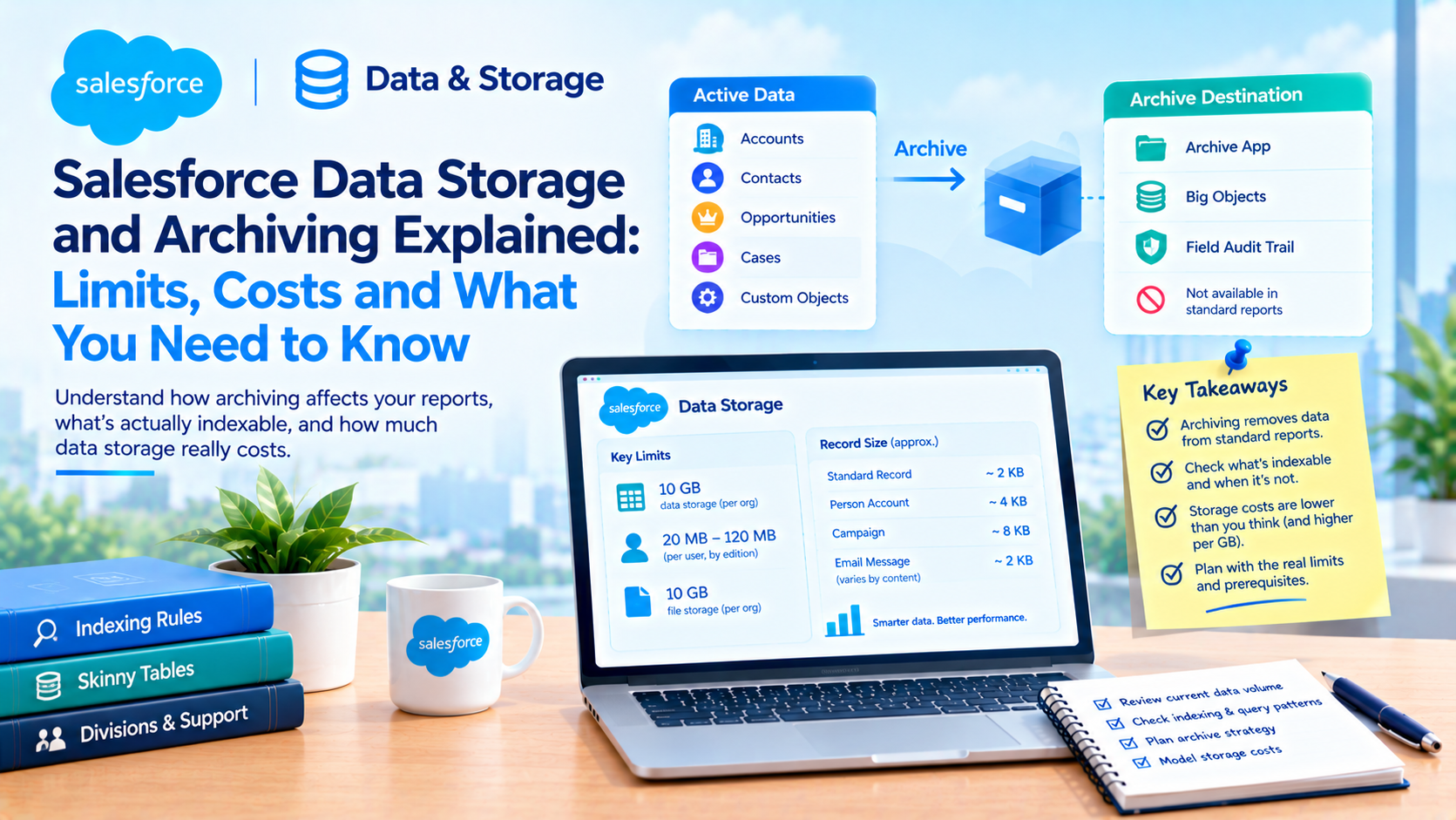
How to Archive Salesforce Data Without Breaking Reports
Archiving Salesforce data breaks reporting by design. Every archive destination Salesforce offers, the native Archive app, custom big objects and Field Audit Trail, removes the data from standard reports as a condition of the move. Salesforce's own documentation says so in each case. If you need the archived data to stay reportable, you have to build a second, smaller copy of it back inside normal storage and pay normal storage for that copy.
That is the sentence missing from most archiving advice, and it is the one that decides your design. The rest of this post is what the platform actually documents: what makes a large org slow, what each archive option costs, which numbers are enforced and which are guidance, and the sequence we use so that reports survive the move.
All figures verified directly on Salesforce's own pages on 19 October 2026.
Is your org slow because of data volume, or because of your queries?
Usually the second one. We have been handed "we need to archive" as a brief many times, and in roughly half those cases the reports got faster without deleting a single record, because the problem was selectivity rather than volume.
Salesforce's query optimizer decides whether to use an index based on how much of the table your filter matches. The published thresholds, from the large data volumes best practices guide:
| Index type | Threshold, as published | Worked example from the same page |
|---|---|---|
| Standard indexed field | "Used if the filter matches less than 30% of the first million records and less than 15% of additional records" | 5 million records, 900,000 or fewer matches |
| Custom indexed field | "Used if the filter matches less than 10% of the first million records and less than 5% of additional records" | 5 million records, 300,000 or fewer matches |
Compound AND | "the query optimizer uses the indexes unless one of them returns more than 20% of the object's records" | none given |
Compound OR | "unless they all return more than 10% of the object's records", and "All fields in the OR clause must be indexed for any index to be used" | none given |
LIKE | the optimizer "samples up to 100,000 records of actual data to decide whether to use the custom index" | none given |
Note the OR rule, because it is the one that quietly ruins list views. One unindexed field in an OR clause disqualifies every index in the clause, not just its own. A report that was fast last quarter can become a full scan because somebody added a filter.
Two more things that are worth knowing before you archive anything:
Index tables exclude nulls by default. "By default, the index tables don't include records that are null (records with empty values)." Support can enable null rows, but the existing index then has to be explicitly enabled and rebuilt. If your filter is "field is blank" on 30 million records, you are not using an index no matter how many you created.
Some fields cannot be custom indexed at all. Custom indexes work on custom fields "except for text areas (long), text areas (rich), non-deterministic formula fields, and encrypted text fields", and standard fields require a support case. Formulas referencing fields with special functionality, Opportunity Amount among them, are non-deterministic and therefore not indexable. People are regularly surprised that they cannot index Opportunity Amount.
Skinny tables are the other lever, and they come with an ongoing dependency most posts leave out. They hold a maximum of 200 columns, are supported on custom objects plus Account, Contact, Opportunity, Lead and Case, "can't contain fields from other objects", and only help a query that references nothing outside the skinny table. You cannot create one: "If you want to use skinny tables, contact Salesforce Customer Support." And if the report later needs one more field, you contact Support again. Salesforce's own caveat is the most quotable line in the guide: "Skinny tables aren't a magic wand to wave at performance problems."
The one thing on that page with a genuine stated prerequisite is Divisions: "To use divisions, your organization must have over one million records in a single object and more than 35 licenses." That is a requirement, not a recommendation, and it is also Support-enabled.
By contrast, the two numbers everyone quotes as limits are not limits. "Avoid having any user own more than 10,000 records" and "Distribute child records so that no parent has more than 10,000 child records" are both imperative guidance on ownership and parent skew. Salesforce does not cap owned records at 10,000, and an architect who designs as though it does will make the wrong trade.
What does Salesforce data storage actually cost?
Less than people expect at the allocation level, and more than they expect per gigabyte.
Every paid edition from Contact Manager through Unlimited gets 10 GB of data storage per org, plus a per-user increment: 20 MB per user on Professional and Enterprise, 120 MB per user on Performance and Unlimited. File storage is a flat 10 GB per org on those editions.
Record sizing is where the modelling goes wrong. Salesforce's published figure is an approximation, not a rule: "Most Salesforce records consume approximately 2 KB of data storage", with the hedge "These figures are approximations and may vary". The documented exceptions matter if your volume sits in the wrong object:
- Person Accounts: 4 KB, because "A Person Account is a junction of two individual records"
- Articles: 4 KB, varying with rich text content
- Campaigns: 8 KB
- Campaign Members: 1 KB
- Email Messages: nominally 2 KB, but "Storage varies depending on whether the email is HTML or plain text", and Salesforce's own example is a 100 KB HTML email consuming 100 KB
So a 40 million record org sized at a flat 2 KB is under-counted if a meaningful share of those records are EmailMessage. We have seen an org where EmailMessage alone accounted for more consumed storage than every other object combined, and the archiving plan had been built around Task.
Salesforce publishes no list price for additional data or file storage. The platform add-ons page has a long price table and no storage line on it at all. What it does publish, with the footnote "Total cost billed annually. All prices in USD", is *Big Objects at "$1,000/month for 50 million records"**, which is USD 12,000 a year committed, and Salesforce Data Pipelines at "$9,000/per org/per month for a capacity of 100M rows, with 30 hours of processing time."
For a sense of the ratio between data and file storage, the only published ladder we could find is a reseller list rather than Salesforce's own. Softcat's UK G-Cloud 15 price list for Salesforce add-ons shows data storage at £307.02 per 10 GB per month and file storage at £23.63 per 10 GB per month. Treat those as a reseller's framework prices, not Salesforce list prices. The structural point survives the caveat: data storage costs roughly thirteen times what file storage costs per gigabyte, which is the real economic argument for moving attachments out and for archiving records rather than buying your way up.
Which Salesforce archiving option should you use?
Four destinations, and they fail in different directions. Evidence marked per column, because it varies a great deal.
| Option | Keeps record IDs | Reportable | Restorable | Cost, as published |
|---|---|---|---|---|
| Native Archive app | Not stated in the docs | No. "can't be edited or included in standard Salesforce reports" | Yes. Restores "a record and all its original relationships back to the live org with a single click" | No list price. "Pricing varies based on each customer's individual data archiving needs." Minimum 1 GB data plus 1 GB file Archive storage |
| Custom big object | No usable ID. The index is the key, and Id returns only empty IDs | No. "it's not practical to build reports or dashboards directly from that data" | No restore mechanism documented | Included to 1 million records, then USD 1,000/month per 50 million, billed annually |
| Field Audit Trail | Not applicable. History rows keyed by type and parent | Not documented | No restore documented | 10% of net spend |
| Hard delete plus external warehouse | Gone from Salesforce entirely | Only in the warehouse | No. Bypasses the Recycle Bin | No Salesforce licence cost |
Salesforce does sell a native archiving product, and it is simply called Archive. The Get Started with the Archive App article is where the operational detail lives: automatic indexing "covers up to 1,000 fields per org and then stops", you must "Purchase a minimum of 1 GB of Archive data storage and 1 GB of Archive file storage", Salesforce recommends "keeping storage usage at or under 80%" and warns of "Full system errors, such as blocked record creation when you reach 100% usage". Archived data "is encrypted and read-only to help meet GDPR, HIPAA, or CCPA requirements". One residency detail to check before you design an export path: "Exporting to AWS S3 isn't available on Hyperforce archive regions."
The decision between native Archive and a custom big object comes down to one question, and it is not price.
Native Archive keeps the relationships and the restore path. Big objects keep neither, and cost less. Archive automatically archives master-detail children with the parent, optionally does the same for lookup children, and brings the whole graph back on unarchive. A big object has no parent-child concept, no restore, and no usable record ID. We have used big objects where the requirement was genuinely "retain this for seven years, retrieve it rarely, never put it back", typically transactional logs and interaction history. We have not seen a big object work where the business later wanted the records in the org again, and that request arrives more often than anyone predicts at design time.
What makes a big object irreversible?
One line in the documentation, and it is worth printing out before anyone deploys one.
From the big objects implementation guide: "After you've deployed a big object, you can't edit or delete the index." And the remedy: "To change the index, start over with a new big object."
The index is also constrained before you get there. "All fields that are part of the index must be marked as required." "The total number of characters across all text fields in an index can't exceed 100", with email fields counting as 80 and phone fields as 40 against that total, raisable by Support. "You can't include LongTextArea and URL fields in the index." The documentation states no maximum number of index fields, so the "five fields maximum" figure in wide circulation is not something we can source, and we have left it out.
Because the index is the primary key and cannot change, your query shape is fixed at deployment too. SOQL on a big object must start from the first index field with no gaps, can use = or IN on any field but only one IN per query, supports range operators only on the last field in the query, and allows no subqueries. The operators !=, LIKE, NOT IN, EXCLUDES and INCLUDES are invalid in any query, as are aggregate functions. Get the index order wrong for the questions the business will ask in year three, and the fix is a new object and a full data migration.
Other documented constraints that change designs:
- Async SOQL is retired. Salesforce's help article on it, republished 3 October 2026, is unambiguous: "Salesforce is retiring and no longer supporting the Async SOQL feature of Big Objects with the Summer '23 release", and "You must use the Bulk API or batch Apex to query or report on custom Big Objects." Any design document in your drawer that reaches big object data through Async SOQL is three years out of date.
- 100 big objects per org, per the considerations page. The default record allocation is 1 million per org, and the help article on raising it says plainly: "Salesforce Support is unable to process increase or feature provisioning requests for Big Objects." Capacity is an add-on bought through your account executive, and for production orgs the allocation is enforced contractually rather than technically.
- No transactions. "Big objects don't support transactions." Reading or writing one from a trigger, process or flow on an sObject is documented as a job for asynchronous Apex.
- Custom components only. Big objects "support custom Lightning and Visualforce components rather than standard UI elements" such as home pages, detail pages and list views.
- Encryption does not carry over, and this is the compliance landmine. "Big objects don't support encryption", and "If you archive encrypted data from a standard or custom object, it's stored as clear text on the big object." If your reason for archiving is a retention obligation on sensitive data, that single sentence can invalidate the design.
- A whitespace trap with teeth. Trim index values before insert. SOQL will not match padded values, and a record with padded index values cannot be deleted through the delete API either.
Salesforce's documented route to reporting on big object data is a nightly extract, and the wording is instruction rather than suggestion: use Bulk API to extract "a smaller, representative subset of the data", store it "in a custom object", tick Allow Reports on that object, and "set this job to run nightly". Which means you are paying ordinary data storage for whatever slice you want to report on. That is the honest answer to "is the archive reportable", and it is not how the feature is usually sold.
One more correction worth carrying, because two Salesforce sources disagree. The current Field Audit Trail developer documentation gives Field History Tracking as "Up to 20 per object", "18-24 months", "UI and API", and Field Audit Trail as "Up to 200 per object", "Until deleted", "API only". The Summer '25 PDF of the same guide still says 60 fields per object. Prefer the live developer doc, and note the retention wording carefully: "Until deleted" means nothing purges automatically. The archiveRetentionYears setting is described as "The number of years until you manually delete data from the archive" and functions as a reminder, not a purge. Any compliance programme that assumed an automatic deletion has an unmet obligation sitting in a big object.
What breaks when you delete at volume?
Start with the myth, because it is in Salesforce's own training content. The Recycle Bin no longer has a size formula. Three current pages agree, including Manage the Recycle Bin in Lightning Experience: "Deleted items remain in the Recycle Bin for 15 days", "There isn't a limit on the number of deleted records that the Recycle Bin can hold", and "Records in the Recycle Bin don't count against your Salesforce org's storage usage." Trailhead's large data volumes module still tells you the data stays "for 15 days, or until the Recycle Bin grows to a specific size". That is stale. The developer documentation and both Help pages outvote it three to one, and the old "25 times your storage" formula is gone from current documentation entirely.
A related feature that almost nobody knows about: Extended Recycle Bin Retention takes the window from 15 days to 30. It "must be activated by Salesforce Support", can "only be set to 15 or 30 days", and comes with a sting: "The 30-day retention extension is only fully accessible in Salesforce Classic." Your Lightning users may have to switch to Classic to recover something deleted 20 days ago.
Then the counter-intuitive part. A mass soft delete does not immediately make anything faster. Soft-deleted records remain stored and queries still have to filter them out, so the performance benefit arrives only once they leave the Recycle Bin. Plan the quiet window accordingly, and do not promise the business a Monday morning improvement from a Friday night delete.
Hard delete is the documented route for volume. Bulk API and Bulk API 2.0 both support it, it bypasses the Recycle Bin, and Data Loader's guide is blunt: "hard-deleted records are immediately deleted and can't be recovered from the Recycle Bin." It is off by default and has to be enabled by an administrator. We could not find the exact permission name on any Salesforce page, so check it in Setup rather than trusting a blog, including this one.
Two mechanics to get right on the extract and delete jobs themselves:
The 150 MB and 100 MB figures are different things. The upload job data documentation says, in order: "A request can provide CSV data that does not in total exceed 150 MB of base64 encoded content", then "When job data is uploaded, it is converted to base64", then "This conversion can increase the data size by approximately 50%", then "To account for the base64 conversion increase, upload data that does not exceed 100 MB." The 150 MB is the enforced cap on base64 content. The 100 MB is an instruction about raw data, with no "we recommend" anywhere near it. Treat 150 MB as the wall and 100 MB as the budget that keeps you off it.
PK chunking is silently disabled by three common mistakes. The header is Sforce-Enable-PKChunking, the default chunk size is 100,000 and the maximum is 250,000. Salesforce recommends enabling it "when querying tables with more than 10 million records or when a bulk query consistently times out", which is guidance rather than a threshold. The traps are enforced, though: filtering on fields with "id" in the name, using ORDER BY, or using LIMIT effectively disables chunking for the job. Which is exactly what someone does when they add a LIMIT 100 to test the query, then wonders why nothing chunked.
How to archive without breaking your reports
The sequence that has worked for us, in order, with the reporting question settled before any data moves.
- Measure before you design. Read
DataStorageMBandFileStorageMBfrom the REST/limitsresource, then break consumption down by object. Both require the Manage Users permission. If the answer is EmailMessage or Task, your archive plan is a different plan. - Fix selectivity first. Check the filters on your three slowest reports against the threshold table above. An org that becomes fast at this step has saved itself a project.
- Write down the reporting requirement explicitly. Which fields, on which objects, over what period, do the business genuinely need after the archive? That list is your working dataset, and it should be ruthlessly short.
- Pick the destination from the restore requirement, not the price. If anyone will ever need the records live again, native Archive. If the answer is genuinely never, a big object is cheaper and the index design becomes the critical decision.
- Design the big object index for the questions, not the data. The first index field has to be the one every future query filters on, because no gaps are allowed and the index cannot be changed after deployment.
- Build the reportable working set deliberately. A nightly Bulk API extract into a regular custom object with Allow Reports enabled, holding only the fields from step 3. Budget normal data storage for it.
- Rebuild the affected reports and dashboards against the working set before you archive, not after. This is the step that gets skipped and the reason archiving projects get reversed.
- Test the delete at 10, 100, 1,000 and 10,000 records in a sandbox, the batch sizes Salesforce's own Archive rollout guidance suggests, then watch the Recycle Bin window before expecting any performance change.
- Check your encryption position. If any archived field is encrypted in production, confirm where it lands. On a big object it lands as clear text.
What we could not confirm
Honesty is more useful here than completeness, and several things an architect would want are simply not documented.
Salesforce does not state whether records restored by re-inserting rows keep their original IDs, and the undelete() documentation does not address record IDs at all. It does not document what happens to a record's field history when the record is hard-deleted. It does not document roll-up summary recalculation behaviour on a mass delete. It does not state whether archived records in the native Archive app retain their record IDs, nor publish an edition or licence requirement or a supported-object list for Archive. And the current Bulk API 2.0 limits page carries no values at all, pointing instead at a cheat sheet we could not retrieve, so the ingest and query figures in circulation date from API 51.0.
Where the platform is silent, get the answer from your own sandbox before you rely on it, and write down what you found.
Frequently Asked Questions
Can you report on archived Salesforce data?
Not in standard reports. The native Archive app documentation states archived records "can't be edited or included in standard Salesforce reports", and the big objects guide says "it's not practical to build reports or dashboards directly from that data". The documented route is a nightly Bulk API extract into a regular custom object with Allow Reports enabled, which consumes ordinary data storage.
How much does Salesforce charge for extra data storage?
Salesforce publishes no list price for additional data or file storage. The platform add-ons page has no storage line item. It does publish Big Objects at USD 1,000 per month for 50 million records, billed annually. For incremental data and file storage you will need a quote, and reseller framework prices suggest data storage costs roughly thirteen times file storage per gigabyte.
Does the Recycle Bin have a size limit?
No, not any more. Salesforce's current Lightning and Classic Help pages and the developer documentation all state "There isn't a limit on the number of deleted records that the Recycle Bin can hold" and that those records "don't count against your Salesforce org's storage usage". Trailhead still mentions a size limit, which is stale. Retention remains 15 days, extendable to 30 by Support.
Can you change a big object's index later?
No. "After you've deployed a big object, you can't edit or delete the index", and to change it you "start over with a new big object". Index fields must all be marked required, the total characters across text fields in the index cannot exceed 100, and LongTextArea and URL fields are not allowed. Design the index around future queries, not current data.
Is Async SOQL still available for big objects?
No. Salesforce retired Async SOQL with the Summer '23 release, and the help article republished in October 2026 states "You must use the Bulk API or batch Apex to query or report on custom Big Objects". For results over 50,000 records, Salesforce suggests chained batch Apex jobs, each resuming from the last primary key.
Will archiving make my reports faster straight away?
Not if you soft delete. Soft-deleted records remain stored and queries still filter them out, so the gain arrives after the 15-day Recycle Bin window, or immediately if you use Bulk API hard delete. In our experience the larger and faster win usually comes from fixing query selectivity rather than from reducing row counts at all.
Where to start
If your reports are timing out and the archiving conversation has already started, the expensive mistake is choosing the destination before writing down what must stay reportable. That order of operations is what turns an archive into a rollback six months later. Pull your storage breakdown by object, pick your three slowest reports, and check their filters against the selectivity thresholds above before anything moves. If you would rather have someone do that pass with you, we will look at the org, and there is more on how we approach platform and data work on our site.
Have Questions or Need Assistance?
Our team of Salesforce experts is ready to help you implement the solutions discussed in this article.
Contact Us Today