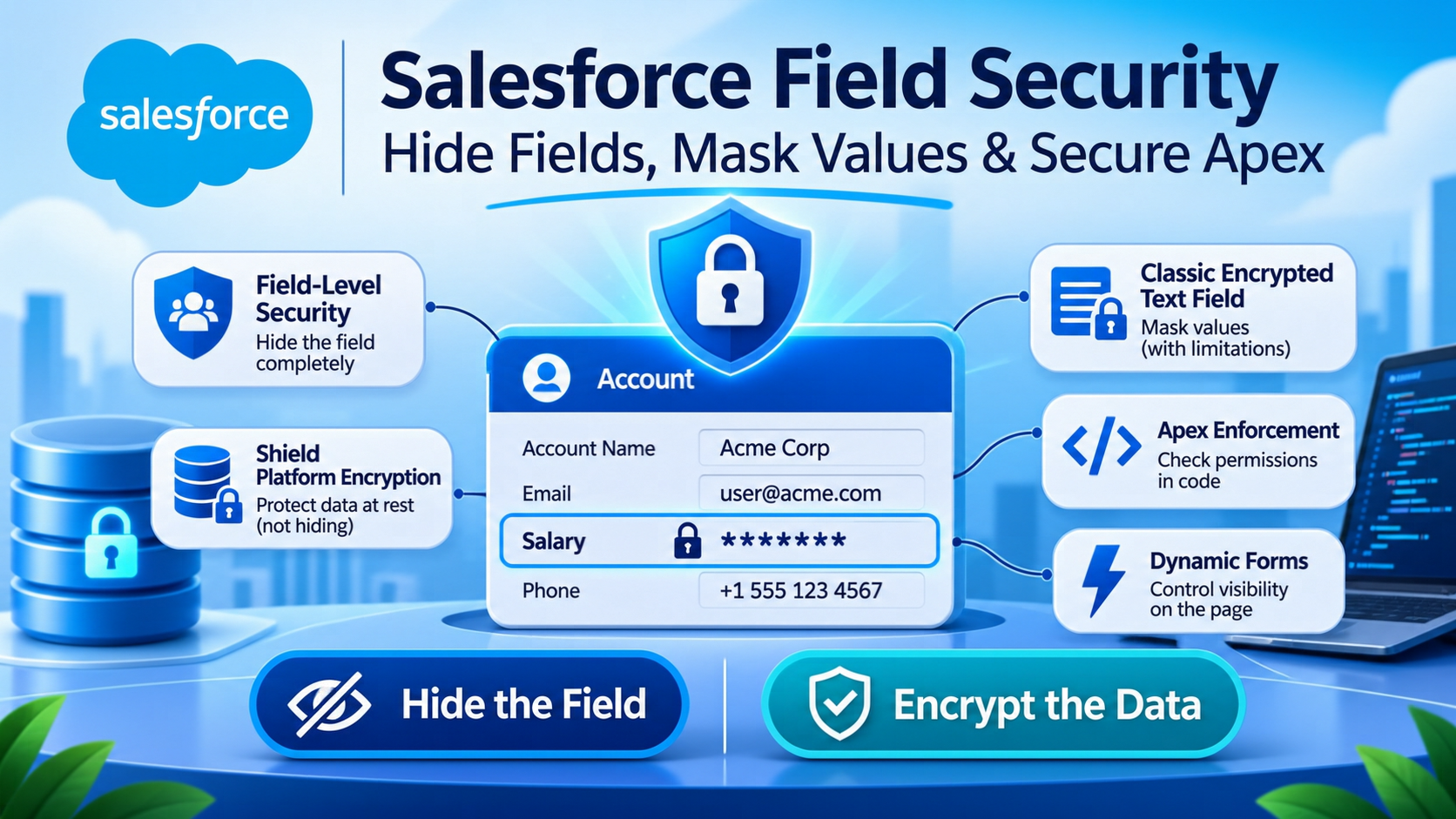
How to Hide a Salesforce Field From Some Users
To stop some users seeing a field in Salesforce, remove read access to that field in a permission set or profile. Field-level security is the only general-purpose control that does this, and it removes the field from detail pages, list views, reports, search results and the APIs for those users. Shield Platform Encryption does not hide anything from a user who has read access, and has not since Spring '17.
The one Salesforce feature that genuinely masks a value while leaving the field visible is the Classic encrypted text field type, which is free, still supported, and comes with restrictions severe enough that most teams should not use it. This post covers what each mechanism actually does, where field-level security leaks, and how to enforce it in Apex.
Which Salesforce feature actually hides a field's value?
Four mechanisms get recommended for this and only two of them hide anything. Here is the honest comparison before the detail.
| Mechanism | Hides the value from a user with record access? | Cost | What it costs you functionally |
|---|---|---|---|
| Field-level security (permission sets) | Yes, the field disappears entirely | Included | Nothing, but formula fields referencing it still show |
| Classic encrypted text field | Yes, masked with asterisks unless the user has View Encrypted Data | Included | No report filters, no formula fields, no search, 175 characters |
| Shield Platform Encryption | No | 30% of net spend, or 20% for Platform Encryption alone | Nothing, because it is not a visibility control |
| Restriction rules | No, it hides whole records rather than fields | Included | Two active rules per object on Enterprise, EQUALS only |
| Dynamic Forms visibility rules | Removes the component from the page | Included | Our read is that this is presentation only, see below |
Prices are Salesforce's published list rates from the Shield pricing page, verified 9 November 2026. Everything else in the table is quoted from Salesforce documentation in the sections below.
How field-level security hides a field, and the four places it does not
Field-level security is set per field in a permission set or profile. Salesforce's field permissions documentation defines it plainly: "Field permissions, or field-level security, lets you specify whether users can view or edit each field for an object." There are three states, quoted from the same page: "Users can read and edit the field", "Users can read but not edit the field", and "Users can't read or edit the field."
Salesforce still documents editing field permissions on profiles, so the original profile interface works, but the recommendation is explicit: "We strongly recommend that you use permission sets and permission set groups instead of profiles." A user has one profile and can have multiple permission sets, so permission sets are the only approach that survives contact with a real org.
The reach of field-level security is better than most people expect. The same page lists where field permissions restrict access: detail and edit pages, related lists, list views, reports, Connect Offline, email and mail merge templates, custom links, Experience Cloud sites and portals, synchronized data, imported data, and "Salesforce APIs". Note the plural. Removing read access is not a UI trick, it removes the field from the API payload as well.
A second Salesforce page, Field-Level Security, gives a shorter list that includes "search results" but omits the APIs, where the first page includes the APIs and omits search results. Both pages are current. Between them you can source reports, list views, search results and the APIs, but you have to cite two pages to do it. Salesforce contradicting itself at this level is routine and worth knowing about before you quote one page at an auditor.
Now the four leaks, all of them documented by Salesforce rather than discovered the hard way.
Formula and roll-up summary fields. This is the one that catches most teams, and Salesforce says it outright in a Note on the field permissions page: "Roll-up summary and formula fields are read-only on detail pages and not available on edit pages. They can also be visible to users even though they reference fields that your users can't see." Remove read access on Salary, leave a formula field that divides Salary by 12 on the layout, and the user has the number. We have found exactly this in two security reviews this year, both times on a field nobody remembered creating.
Universally required fields. From the same Note: "Universally required fields appear on edit pages regardless of field-level security." If you mark a field required at the field level, you cannot then hide it on edit pages.
Permissions that override field-level security. The Field-Level Security page says "Some user permissions override both page layouts and field-level security settings", and gives the example that users with Edit Read Only Fields "can always edit read-only fields". Audit who holds that permission before you rely on a read-only configuration.
Apex and integration users. Covered in its own section below, because it is the largest of the four.
One thing we could not establish: whether field history entries for a hidden field are visible to a user who lacks read access on that field. We found no Salesforce page that states it either way, so we are not going to tell you. If that distinction matters to your compliance position, test it in a sandbox rather than trusting anyone's blog post, including this one.
Why Shield Platform Encryption does not hide anything from your users
This is the most expensive misunderstanding in Salesforce security, and Salesforce documents the answer clearly enough that there is no excuse for it persisting.
There is a knowledge article whose title is the whole answer: View Encrypted Data permission not needed with Shield Platform Encryption since Spring '17, published 13 October 2022. It says:
"This update decouples masking capabilities from Shield Platform Encryption."
"You are now no longer able to use the "View Encrypted Data" permission to control who sees unmasked encrypted field values."
"Users who don't have access to a field, record, or object won't see that information, whether it's encrypted or not."
"This change doesn't affect Classic Encryption."
The Shield setup guide puts it even more bluntly: with Shield Platform Encryption, if a user is authorised to see a given set of data, that user sees it whether it is encrypted or not, and "It is not a way to hide data from authenticated users." Salesforce's own Classic-versus-Shield comparison table prints "No" in the Masking row for the encryption columns.
So what does Shield buy at 30% of net spend? Encryption at rest with 256-bit AES, HSM-based key derivation, customer-controlled key lifecycle under the Manage Encryption Keys permission, encrypted standard fields, files and attachments, plus Field Audit Trail and Event Monitoring in the bundle. Those are real controls and they answer real audit questions. Not one of them decides who can see a field in the user interface. That is field-level security's job, and field-level security is free.
If a vendor, a partner or an internal stakeholder has told you Shield will hide salary data from your sales managers, the four quotes above are what to send back.
A note on the documentation trail, because it is interesting rather than load-bearing. The behaviour changed in Spring '17 per the knowledge article, but the archived comparison tables still show a masking checkmark for Platform Encryption in the Spring '17 doc version, and the cell is blank by Winter '18. That is our reading of the doc snapshots rather than a Salesforce statement, and it means the documentation lagged the behaviour by one or two releases. Nine years on, the folklore has not fully caught up either.
When a Classic encrypted text field is still the right answer
Here is the trade-off, and it is a genuine one rather than a rhetorical one.
The Classic Encryption for Custom Fields documentation states: "Only users with the View Encrypted Data permission can see data in encrypted custom text fields." That is masking, in the presentation layer, gated on a permission, at no additional cost. It is the only Salesforce feature that does this, and it is the reason the field type survives.
The price of that masking is a restriction list that Salesforce publishes in full. Quoted:
- "Can't be unique, have an external ID, or have default values."
- "Are limited to 175 characters because of the encryption algorithm."
- "Aren't available for use in filters such as list views, reports, roll-up summary fields, and rule filters."
- "Can't be used to define report criteria, but they can be included in report results."
- "Aren't searchable, but they can be included in search results."
- "Aren't available for Connect Offline, Salesforce for Outlook, lead conversion, the Assignment element in a flow, workflow rule criteria or formulas, formula fields, outbound messages, default values, and Web-to-Lead and Web-to-Case forms."
- "Aren't available to users with these License types: Partner, PowerPartner, CspLitePortal, CustomerSuccess, or PowerCustomerSuccess."
Read that list as a whole and the shape of the decision is clear. A Classic encrypted field cannot participate in reporting criteria, cannot feed a formula, cannot be searched and cannot drive automation. It is a field you can store something in and look at, and nothing else.
So why would we ever recommend it? Because occasionally that is exactly the requirement. A national insurance number or a passport number that support agents must read aloud to verify a caller, that nobody reports on, that no automation touches, and that most of the org should never see, is a textbook fit. We have used it for precisely that and it was the right call. The alternative we considered first was a separate restricted object holding the identifier, related to the Contact, with field-level security doing the work. That is more functional and it lost on effort: it added an object, a relationship, a page layout, a permission set and a related list to show one number, and the masking requirement was the actual requirement.
Two failure modes to know about before you commit.
Login-as leaks it. From the same page: "If you have the View Encrypted Data permission and you grant login access to another user, the user can see encrypted fields in plain text." Your support process can undo your masking.
The masking will not turn off when you want it to. "You can use encrypted fields in email templates, but the value is always masked regardless of whether you have the View Encrypted Data permission." Masking is also present during Apex execution and in the resulting Visualforce markup, and in getContent and getContentAsPDF requests. So a merge field renders as asterisks in a customer-facing document and no amount of permission granting fixes it. That one costs an afternoon of debugging the first time you meet it.
Also worth noting: the field is limited to 175 characters and uses 128-bit AES, where Shield uses 256-bit. Classic encryption is a masking feature with encryption attached, not an encryption feature with masking attached.
What restriction rules and Dynamic Forms do, and what they do not
Both of these get suggested in this conversation and neither hides a field's value.
Restriction rules hide records, not fields. The restriction rules considerations page is specific about the scope: they are available for "custom objects, external objects, contracts, events, quotes, tasks, time sheets, and time sheet entries". Note what is not on that list, which is every standard object you probably care about including Account, Contact, Opportunity and Case.
The allocation is a hard cap on creation: "You can create up to two active restriction rules per object in Enterprise and Developer Editions" and "up to five active restriction rules per object in Performance and Unlimited Editions." Other documented constraints worth knowing: "Restriction rules support only the EQUALS operator", "Creating a restriction rule for an object doesn't automatically restrict access to its child objects", and "Users with the View All Records or View All Data permissions can view all records regardless of restriction rules."
The one that bites hardest is "Restriction rules aren't applied for code executed in System Mode." A restriction rule is not a control over your Apex. Salesforce also states that it "can't guarantee that restriction rules work as intended for end users" in Salesforce Classic.
Dynamic Forms visibility rules are presentation. We could not find a Salesforce page that states whether a visibility rule leaves the value retrievable through the API or a report, so this next sentence is our professional conclusion rather than a documented fact: treat a Dynamic Forms visibility rule as a page-clutter control, not a security control, and assume the value is still available to anything that is not the page. Salesforce's own architecture guidance on building forms frames visibility rules in display terms, describing them as a way "to show or hide components based on user profile, device, or data, which helps reduce page clutter", and never calls them a security feature. That is supporting evidence rather than proof, which is why we are labelling it.
The one declarative field-visibility rule Salesforce publishes, and why it probably will not help you
There is a metadata type called FieldRestrictionRule that does exactly what the title of this post asks for, and almost nobody knows about it. Its Metadata API reference describes it as "a field visibility rule that controls whether a field is visible to a user", driven by the field's inclusion in a field set or by its compliance categorisation. It was introduced in API version 52.0.
Before you get excited, the scope: "Only the Employee and User objects are supported." It is the machinery behind Enhanced Personal Information Management, which exists to stop external users on Experience Cloud sites seeing other users' personal information fields. Salesforce's documentation confirms the audience: external users "don't see other users' personal information fields on Experience Cloud sites", authenticated external users can still see and update their own, and unauthenticated guests see none including their own. Which fields are hidden is driven by the PersonalInfo_EPIM field set, or by PII compliance categorisation if the feature was switched on before Spring '22.
So it is a real declarative field-visibility control, it is field-set driven, and it works on two objects for one audience. If your requirement is hiding a custom field on Opportunity from internal users, it is not the answer. If your requirement is stopping community members seeing each other's phone numbers, it is exactly the answer and you should use it rather than building something.
One hard constraint before you turn it on: Salesforce states that "You can't disable the Enhanced Personal Information Management" once it is enabled, and the same applies to Independent Guest Field Masking. That is a one-way door, so test it in a sandbox.
How to enforce field-level security in Apex
Field-level security applied in Setup does not automatically apply in your code, and this is where most real data leakage happens.
The clearest statement is on the Enforce Sharing Rules page: "Using the with sharing keyword doesn't enforce the user's permissions and field-level security." Sharing rules are "distinct from, and can co-exist with object-level and field-level permissions". If your code review standard is "does it say with sharing", your code review standard does not cover field-level security.
The current mechanism is user mode. The access mode documentation states that "In API version 67.0 and later, Apex runs in user context by default", that "In API version 66.0 and earlier, system mode is the default", and that "Database operations only ignore FLS and object permissions if you explicitly set them to run in system mode." You indicate the mode with a WITH USER_MODE or WITH SYSTEM_MODE clause on a SOQL or SOSL query, or with AccessLevel.USER_MODE on a Database DML method.
Be aware that Salesforce's secure coding guide still says the opposite about the default: "By default, Apex data operations (SOQL, DML, and SOSL) run in system mode with full CRUD access to objects and fields." Both pages are current as of 9 November 2026. The safe reading is to be explicit in every class and never rely on the default, which is what we do on every engagement regardless of which page is right. The same secure coding page is unambiguous on the preferred approach: Salesforce "suggests using WITH USER_MODE over WITH SECURITY_ENFORCED for enforcing CRUD and FLS", and notes that "WITH SECURITY_ENFORCED isn't allowed in AppExchange packages."
For graceful behaviour rather than exceptions, use stripInaccessible(). Salesforce's reference describes it as a way to "enforce field-level and object-level data protection" by "stripping fields and relationship fields from query and subquery results" that the user cannot access, and recommends it "for graceful degradation on errors by omitting fields, rather than failing outright". One documented limitation: "If the source records are of AggregateResult SObject type, an exception is thrown." If you are returning aggregate results to a Lightning component, that path needs a different approach.
For Lightning components, Salesforce's guidance is to avoid the problem rather than solve it: "we recommend using Lightning Data Service, which handles sharing rules, CRUD, and field-level security for you." We agree, and we would add that the main reason teams write Apex controllers for record access is that someone wanted a slightly different shape of data, which is rarely worth owning the security enforcement for.
Step by step: hiding a field's value from a group of users
- Decide whether you need the field hidden or the value masked. Hidden means gone, and is what almost every requirement actually wants. Masked means visible as asterisks on the page, which only matters when someone needs to see that a value exists without reading it.
- If hidden, remove read access on the field in every permission set and profile that should not see it. Check permission set groups too, because a muting permission set is the only thing that reduces access granted elsewhere in a group.
- Audit formula and roll-up summary fields that reference the hidden field. Salesforce documents that these stay visible even when their inputs are not. Search the object's fields for the API name of the field you just hid.
- Check whether the field is marked universally required. If it is, it will appear on edit pages regardless, and you need to remove the required flag first.
- List who holds Edit Read Only Fields, View All Data and Modify All Data. These override what you just configured. Integration users are the usual offenders.
- Review every Apex class and Flow that touches the object. Set an explicit access mode on queries and DML rather than relying on the version default, and use
stripInaccessible()where you return records to a client. - Test as a real user, not as an admin with View All. Log in as a member of the restricted group and check the detail page, the related lists, a report on that object, global search, and an API call with that user's session.
- If you genuinely need masking, create the field as an Encrypted Text type and grant View Encrypted Data narrowly. Then confirm your reporting and automation requirements survive the restriction list above, because they often do not.
Frequently Asked Questions
Does Salesforce field-level security hide a field from reports and the API?
Yes. Salesforce's field permissions documentation lists reports, list views, related lists, detail and edit pages, Experience Cloud sites, imported and synchronized data, and "Salesforce APIs" among the places field permissions restrict access. A second Salesforce page adds search results. Removing read access removes the field from the API payload for that user, not just from the screen.
Does Shield Platform Encryption mask data in Salesforce?
No. Salesforce's own knowledge article states that the Spring '17 update "decouples masking capabilities from Shield Platform Encryption" and that the View Encrypted Data permission can no longer control who sees unmasked values. The Shield setup guide adds that encryption "is not a way to hide data from authenticated users". Visibility is governed entirely by field-level security, record access and object permissions.
Can a user see a hidden field through a formula field?
Yes, and Salesforce documents it. The field permissions page states that roll-up summary and formula fields "can also be visible to users even though they reference fields that your users can't see". A formula that exposes part or all of a restricted field's value bypasses the restriction. Audit formula fields whenever you hide a field for compliance reasons.
What is the maximum length of a Salesforce encrypted text field?
175 characters. Salesforce states the field type is "limited to 175 characters because of the encryption algorithm". The type also cannot be unique, cannot have an external ID or default value, cannot be used in report criteria or filters, is not searchable, and cannot be referenced by a formula field.
Do restriction rules work on standard objects like Account and Opportunity?
No. Salesforce lists restriction rules as available for custom objects, external objects, contracts, events, quotes, tasks, time sheets and time sheet entries. Account, Contact, Opportunity and Case are not supported. Restriction rules also hide whole records rather than individual fields, and they are not applied to code running in system mode.
Does with sharing enforce field-level security in Apex?
No. Salesforce states that "Using the with sharing keyword doesn't enforce the user's permissions and field-level security". Sharing keywords control record access only. To enforce field-level security, set an explicit access mode with WITH USER_MODE or AccessLevel.USER_MODE, or filter results with stripInaccessible().
The expensive version of this problem is the one where field-level security was configured correctly two years ago and a formula field, an integration user or an Apex controller has quietly undone it since. If you have a field you believe is restricted and have never tested it as a restricted user against the API, that is a half-day piece of work and it is worth doing before an auditor does it for you. We run that check as part of our Salesforce security and architecture reviews.
Have Questions or Need Assistance?
Our team of Salesforce experts is ready to help you implement the solutions discussed in this article.
Contact Us Today