Why Salesforce Reports and Queries Time Out
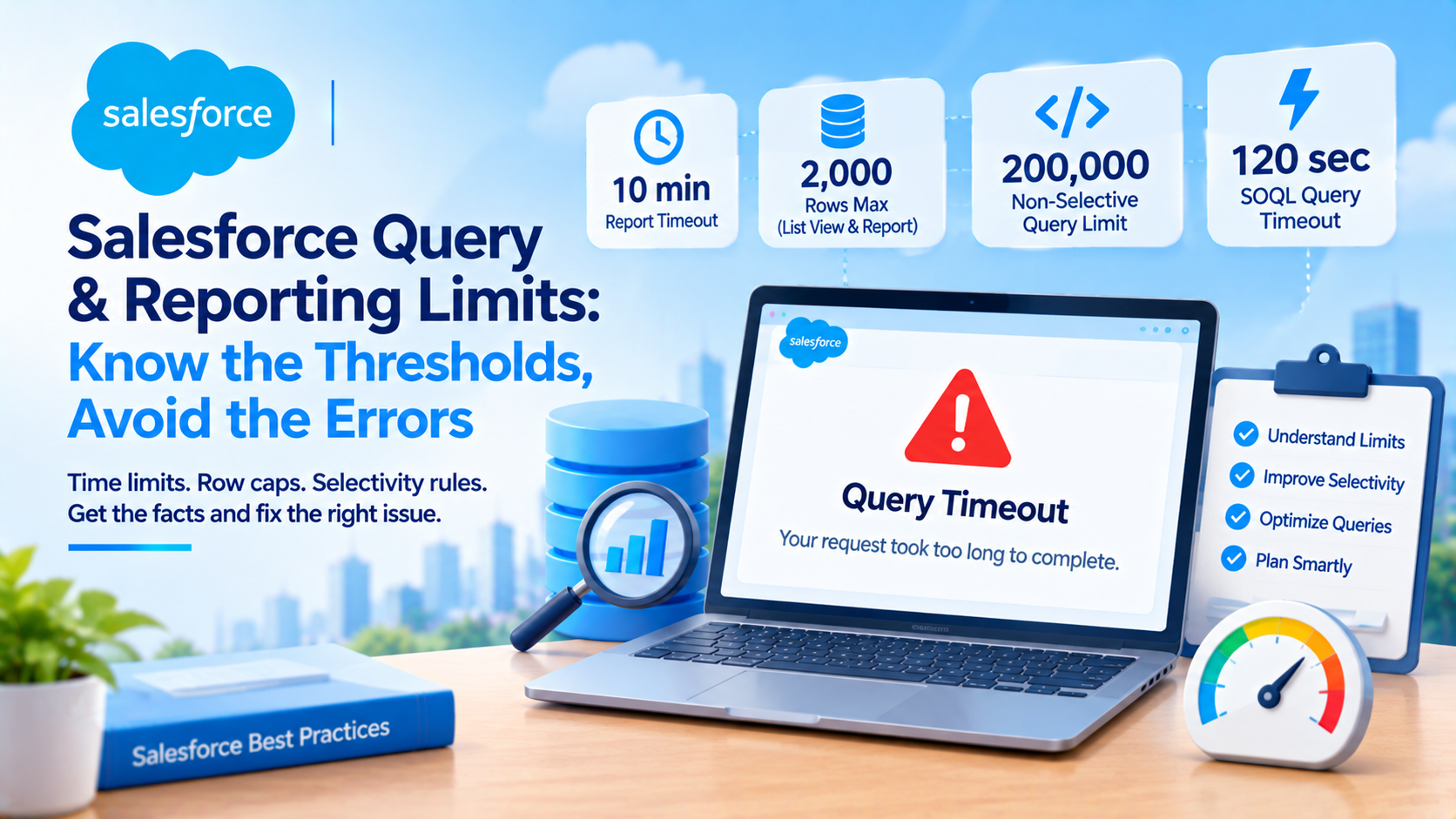
A Salesforce report times out after 10 minutes and displays a maximum of 2,000 rows. A list view truncates at 2,000 records. A SOQL query inside an Apex trigger throws System.QueryException: Non-selective query against large object type when the object holds more than 200,000 records and no filter is selective. These are four different failures with four different thresholds, and fixing the wrong one wastes a week.
Almost every piece of writing on this topic treats them as one problem called "Salesforce is slow". They are not one problem. The non-selective query exception is a guard rail that only fires in specific execution contexts. The report timeout is a time limit. The list view truncation is a display cap that still makes the database do the work. Knowing which one you have hit tells you which fix is even relevant.
What follows is the diagnosis path we use, with the Salesforce documentation behind each step, and with every figure marked as something the platform enforces or something it merely recommends. That distinction matters more here than anywhere else on the platform, because an architect who treats an enforced cap as a guideline will design straight into a hard failure.
Which failure are you actually looking at?
| Surface | What happens | Threshold | Enforced or advisory |
|---|---|---|---|
| SOQL in an Apex trigger | System.QueryException: Non-selective query against large object type | Object holds more than 200,000 records and no selective filter exists | Enforced |
| SOQL inside any Apex transaction | Salesforce cancels the transaction | 120 seconds for a single query | Enforced |
| Apex transaction overall | Transaction ends | 10 minutes | Enforced |
| Report | Report is cancelled | "By default, reports time out after 10 minutes" | Enforced, with an undocumented default |
| Report display | Rows beyond the cap are not shown | "Reports display a maximum of 2,000 rows" | Enforced |
| List view | Results truncate | "List view results are truncated at 2,000 records" | Enforced |
| REST or SOAP API call | QUERY_TIMEOUT for REST, REQUEST_RUNNING_TOO_LONG for SOAP | 10 minutes, "except for any query call" | Enforced |
| Concurrent long-running API requests | REQUEST_LIMIT_EXCEEDED | 25 in production and sandboxes, 5 in Developer and Trial, for calls of 20 seconds or longer | Enforced |
Sources: Execution Governors and Limits, Reports and Dashboards Limits and Allocations, Improve List View Performance, all verified 26 October 2026.
Three points from that table are worth drawing out, because they are the ones people get wrong.
The non-selective query exception is a trigger-context guard rail, not a universal rule. Salesforce's own article on the error explains that the restriction exists to stop unpredictable query times delaying a record save, and that it does not apply in the Developer Console or through the SOAP and REST APIs, which use a standard query timeout instead. So the same query can succeed in the Developer Console and fail in a trigger. That is not flakiness, it is the documented design.
The threshold is 200,000, not 100,000. The 100,000 figure is widespread on community sites and we could find no Salesforce source for it. Both Salesforce help articles on the error say 200,000.
And a list view that returns 3,000 records does not simply show you the first 2,000 cheaply. Salesforce's own wording is that a filter set returning over 2,000 records "spends extra time querying records it can't display". You pay for the full result set and see a fraction of it.
What makes a query selective, in actual percentages
Salesforce publishes the selectivity thresholds, and they are percentages rather than fixed record counts. From the large data volumes indexes page:
- A standard index is used when the filter returns less than 30% of the first million records and less than 15% of additional records. On a 5 million record object that is 900,000 matches.
- A custom index is used when the filter returns less than 10% of the first million records and less than 5% of additional records. On a 5 million record object that is 300,000 matches.
- With AND, the optimizer uses the indexes unless one of them returns more than 20% of the object's records.
- With OR, the optimizer uses the indexes unless they all return more than 10%, and "All fields in the
ORclause must be indexed for any index to be used."
That last sentence is the one to pin above the desk. A single unindexed field in an OR clause disables every index in that clause. We have seen a report go from nine seconds to timing out because someone added one convenience filter to an OR group.
The AND rule is more generous than most people assume, and Salesforce works the example out in full on the query optimizer page. For combined conditions the optimizer considers the overall filter selective when it targets less than "Twice the selectivity thresholds for each filter" or "The selectivity thresholds for the intersection of those fields". In its own worked example, Status = 'Closed Won' matching 49,899 records is selective against a 150,000 threshold, and even when one condition matches 250,000 records the combination still qualifies because each condition is under 300,000.
Notice where that 150,000 comes from. On a two million record object, 10% of the first million plus 5% of the second million is exactly 150,000. The percentages are the real rule and the record counts are derived from them. Any blog quoting a flat 333,333 or 666,666 ceiling is quoting an older formulation from an archived PDF.
How to read the Query Plan before changing anything
Guessing which filter is unselective is slower than asking. Salesforce has a tool that answers it, and it has one number that matters.
Enable it from the Developer Console: Help, then Preferences, then set Enable Query Plan to true. A Query Plan button appears next to Execute in the Query Editor.
The column definitions come from Query Performance Feedback in the REST API Developer Guide, which is the same engine behind that button:
- relativeCost is "The cost of this query compared to the SOQL selective query threshold", and "A value greater than 1.0 means the query isn't selective." That is the documented definition of non-selective, not a rule of thumb.
- leadingOperationType takes four values:
Index(uses an index on the object),Sharing(uses an index based on the user's sharing rules),Other(internal optimizations), andTableScan(scans every record and uses no index). - cardinality is the estimated number of records the query returns based on index fields, and sobjectCardinality is the approximate total record count for the object.
- Plans come back "sorted from most optimal to least optimal", and the first one is the one that will run.
TableScan with a relativeCost above 1.0 is your answer. Stop reading the code and start looking at the filter fields.
The under-known part: the same resource analyses reports and list views, not just SOQL. The documentation says plainly, "To analyze a report or list view, provide the ID of the report or list view." The Developer Console button only takes SOQL, but a GET /services/data/v68.0/query?explain=<report ID> call will give you a plan for the report your sales director is complaining about. We use this constantly and almost never see anyone else do it.
One honest caveat. Query Performance Feedback has carried a Beta Service label since API version 30.0, which is over a decade. It works, it is Salesforce's own documented diagnostic, and it has been beta the entire time.
Why "contains" is the most expensive box on a report filter
The single highest-value thing an admin can learn here is what the report builder's filter operators compile into.
A LIKE condition with a leading % wildcard cannot use an index. And in Salesforce's own words, from an architect evangelist's post on query performance, "Within a report/list view, the CONTAINS clause translates into '%string%'."
So when a user sets a report filter to Account Name contains "acme", they have written a leading-wildcard query against a multi-million row table and disabled the index on that field. There is no code involved and no warning shown. That is why both of Salesforce's list view performance articles lead with "Use the EQUALS operator rather than the CONTAINS operator in filter criteria."
The other operators that defeat an index, from the Apex Developer Guide's list of when a custom index is typically not used:
- Negative operators, specifically "NOT EQUAL TO (or !=), NOT CONTAINS, and NOT STARTS WITH".
CONTAINSwhen the number of rows to be scanned exceeds 333,333, a threshold the page itself says "is subject to change".- Comparing with an empty value, as in
Name != ''. - Any filter whose matched values exceed the selectivity threshold.
Two refinements we would add, because the blanket advice is slightly wrong. Salesforce's query optimization FAQ notes that "at present only != null and != on booleans are optimizable", so != is not uniformly fatal. The same page states that "ORDER BY without LIMIT clause is not going to be optimizable", which we have not seen documented anywhere else and which catches people writing list view sorts.
Salesforce names !=, NOT CONTAINS, NOT STARTS WITH, NOT LIKE and EXCLUDES. It does not name NOT IN. If you see that in a listicle, it is an inference from the negative-operator rule rather than something Salesforce documents.
The index you can create yourself, and the ceiling behind it
Most writing on this says a custom index always means a Support case. That has not been true for some time, and the self-service route has a limit nobody mentions.
Two documented routes exist. The large data volumes guide states you can create custom indexes "by contacting Salesforce Customer Support" or "by deploying a custom index XML file via the Metadata API". Separately, marking a text field as External ID or Unique creates an index automatically: Salesforce's article on the technique says "Marking a Text field as External ID causes Salesforce to automatically create a database index on that field", and that "If the field is not part of a managed package, a system administrator can do this directly." External ID gives you the index without enforcing uniqueness, which is usually what you want.
Here is the ceiling. Salesforce's article on custom index limits, published 22 April 2026, gives a "Default Limit: 25 custom indexes per object (entity)", and notes that the self-service method "has its own separate limit, defaulted at 7". Both are enforced and both can be raised by a Support limit-increase request. Seven is low enough that a mature object reaches it, and the failure mode is confusing: the flag saves, and the index does not appear.
Which standard fields are already indexed is documented in two places that do not quite agree. The Apex Developer Guide lists Id, Name, OwnerId, lookup and master-detail fields, CreatedDate, SystemModstamp, RecordType fields, and custom fields marked External ID or Unique. The large data volumes guide lists RecordTypeId, Division, CreatedDate, SystemModstamp, Name, Email on Contact and Lead, foreign keys and the record Id, and omits OwnerId. The safe practitioner summary is that SystemModstamp is indexed and LastModifiedDate is not, which is why filtering on SystemModstamp in integration queries is standard practice.
Nulls behave differently depending on which index you are relying on. Standard indexes include nulls. Custom index tables do not: "By default, the index tables don't include records that are null." Support can enable null rows, but the index must then be explicitly enabled and rebuilt. So an IS NULL filter on a custom-indexed field falls off the index, which is a common cause of a query that was fast last quarter and is slow now.
And some fields cannot be custom indexed at all: multi-select picklists, currency fields in a multicurrency org, long text, and binary types including encrypted text. Non-deterministic formula fields are excluded too, which is why you cannot custom index a formula referencing Opportunity Amount.
Custom index, skinny table or archive: what we actually choose
Three remedies exist for the same symptom, and the decision is usually made badly because the second one sounds the most powerful.
A custom index is the first choice in almost every case. It is cheap, reversible, often self-service, and it fixes the specific filter that is slow. Its limitation is that it only helps when the filter is selective. Salesforce says this plainly: "Custom indexing a field will improve performance only when the filter that uses this field is selective." Indexing a Status field where 80% of records are Open achieves nothing, and the index still adds cost to every DML operation on the object.
A skinny table is the one teams reach for when the index does not work, and it is a permanent operational dependency rather than a configuration change. From the skinny tables page: you must contact Salesforce Customer Support to get one; they hold a maximum of 200 columns; they exist only on custom objects plus Account, Contact, Opportunity, Lead and Case; they "can't contain fields from other objects"; they are copied to Full sandboxes and not to the others; and adding a single field means another Support request. Salesforce's own assessment is worth quoting: "Skinny tables aren't a magic wand to wave at performance problems."
That last constraint is the one that decides it. A skinny table turns every future field addition into a ticket, and on an object under active development that is a tax you pay forever. We choose skinny tables for stable, high-volume reporting objects and almost never for anything a delivery team is still changing weekly.
Archiving is the remedy that actually changes the arithmetic, because selectivity is a percentage of the object. Halve the record count and every filter becomes twice as selective. It is also the slowest to deliver and carries its own trade-offs around reportability, which we covered separately in our piece on archiving Salesforce data without breaking reports.
The honest ranking: index first, archive second, skinny table last and only when the first two are exhausted.
Salesforce's own remediation sequence
Salesforce publishes an ordered path and asks you to work through it before opening a case. From Improve SOQL Query Performance, the framing is "Before requesting a custom index from Salesforce Support, review the resources below."
- Analyse the query with the Query Plan tool. Get the leading operation type and the relative cost before changing anything.
- Add a selective filter on an indexed field. Narrow the date range, scope to an owner or team, replace
containswithequals. - Check the filter against the selectivity thresholds. 10% and 5% for a custom index, 30% and 15% for a standard one. If the filter cannot get under them, no index will help.
- Create the index yourself where you can. Mark the text field External ID, remembering the default ceiling of seven per object by that route.
- Gather the statistics to prove the case. Salesforce suggests using
GROUP BY ROLLUPin the Developer Console Query Editor to show the distribution of records per picklist value, and includingIsDeletedso soft-deleted rows are visible. - Open a Support case with literal values. Salesforce asks for the SOQL query with literal values rather than Apex variable bindings, which is the step most cases get returned on.
For reports specifically, Salesforce's Improve Report Performance article is written entirely as instructions rather than suggestions: narrow the filters, define date ranges, remove columns you do not need, switch off detail rows, use row-level formulas sparingly, keep sharing rules simple, empty the recycle bin, and schedule slow reports for off-peak hours.
The recycle bin item deserves a sentence of its own, because it is counter-intuitive and free. Soft-deleted records remain in storage and the query still has to filter them out. Salesforce's archived report performance cheat sheet put it bluntly: "Data you've deleted still gets queried when you run a report." Emptying the recycle bin on an object that has had a large deletion is the cheapest performance fix available.
What the documentation does not tell you
Four gaps we would rather name than paper over.
The statistics cadence is contradicted across two live Salesforce pages. The large data volumes guide says "Currently, this statistics-gathering process runs on a nightly basis." The query optimization FAQ says "Statistics are gathered weekly." Both are current. The FAQ adds something more practically useful and single-sourced: the optimizer "performs dynamic pre-queries, whose results are cached for 1 hour", which explains why a newly created index sometimes does not appear to be used for the rest of the afternoon.
The report timeout says "by default". We could not find any documentation of how that default is changed, by whom, or to what value. If a Support engineer offers to adjust it, ask where that is documented.
Sharing has no published numeric threshold. Salesforce documents that the optimizer "considers record visibility when determining a query execution plan", that one of the four leading operation types is Sharing, and that complex sharing slows reports because the rules are evaluated each time the report gets data. It publishes no number at which a role hierarchy or sharing rule set becomes a performance problem. What it does recommend, for dashboards, is setting the running user to one with View All Data to reduce data access calculation overhead. There is no Salesforce statement that an admin's query is faster than the same query run by a restricted user, so do not design around that as though it were documented.
Winter '27 changes nothing here. We checked the release material. The Apex heap limit rose from 6MB to 10MB synchronous and 12MB to 25MB asynchronous, which is real but is about memory rather than query speed, and Salesforce's own architect note suggests revisiting code that chunked data purely to stay under the old ceiling. FORMULA() in a SOQL WHERE clause arrived, but it requires API version 68.0 and is not available in production orgs, and nothing is published about how it interacts with indexes. Given that filtering on formula fields normally defeats indexing, that is a question worth asking before anyone designs around it. Nothing is published for Spring '27.
Frequently Asked Questions
What causes "Non-selective query against large object type" in Salesforce?
The error fires when a SOQL query runs against an object holding more than 200,000 records and the optimizer cannot find a selective filter, meaning one on an indexed field matching fewer than 10% of records. Salesforce documents that the restriction applies in the Apex trigger context, not in the Developer Console or the APIs, so the identical query can succeed interactively and fail in a trigger.
How long before a Salesforce report times out?
Salesforce states "By default, reports time out after 10 minutes", and separately that "If a report takes 10 minutes to export, the export times out and fails." Reports also display a maximum of 2,000 rows regardless of how many match. The documented escape hatch for large result sets is running the report in the background, which is designed for reports that would otherwise time out.
Can I create a Salesforce custom index myself?
Partly. Marking a text field as External ID or Unique creates a database index automatically, and an administrator can do this directly for fields outside managed packages. That self-service route has a default ceiling of seven indexes per object, against a default of 25 custom indexes per object overall. Picklists, checkboxes, formula fields and date/time fields still require a Support request.
Why is my list view slow when it only shows 2,000 records?
Because the database still processes everything your filter matches. Salesforce's wording is that a filter set returning over 2,000 records "spends extra time querying records it can't display". The documented fix is to narrow the filter below 2,000 with additional AND conditions, use EQUALS instead of CONTAINS, and move anything genuinely larger into a report.
Does adding more indexes make Salesforce faster?
Not reliably. Salesforce states that custom indexing a field improves performance only when the filter using that field is selective, and warns that indexes add cost to DML operations and that optimizer behaviour can change as indexes are added. An index on a low-cardinality field such as a two-value status picklist usually makes writes slower and reads no faster.
Is there a way to see why a specific report is slow?
Yes, and it is under-used. The Query Performance Feedback REST resource accepts a report or list view ID as well as a SOQL string: GET /services/data/v68.0/query?explain=<report ID>. It returns the leading operation type and a relative cost, where any value above 1.0 means the query is not selective. The resource has carried a Beta label since API version 30.0.
Where to start
If a specific report or integration query is timing out, the fastest route to an answer is a Query Plan against it, then the selectivity arithmetic on the filter fields it uses. That takes an afternoon and usually ends in a filter change or a single External ID flag rather than a Support case. Where it ends in an object with eight million rows and no filter that can get under 10%, the real conversation is about archiving rather than indexing. We do both, and we are happy to look at the plan output with you before anyone proposes a rebuild. Tell us what is timing out.
Have Questions or Need Assistance?
Our team of Salesforce experts is ready to help you implement the solutions discussed in this article.
Contact Us Today